Upload a floor plan, set the scale with one line, and Spatium traces the walls, doors and windows into editable rooms. Review the result, choose the constructions, and you have the foundation for your 3D twin and cost estimate.
You only need a floor plan image and one length you know.
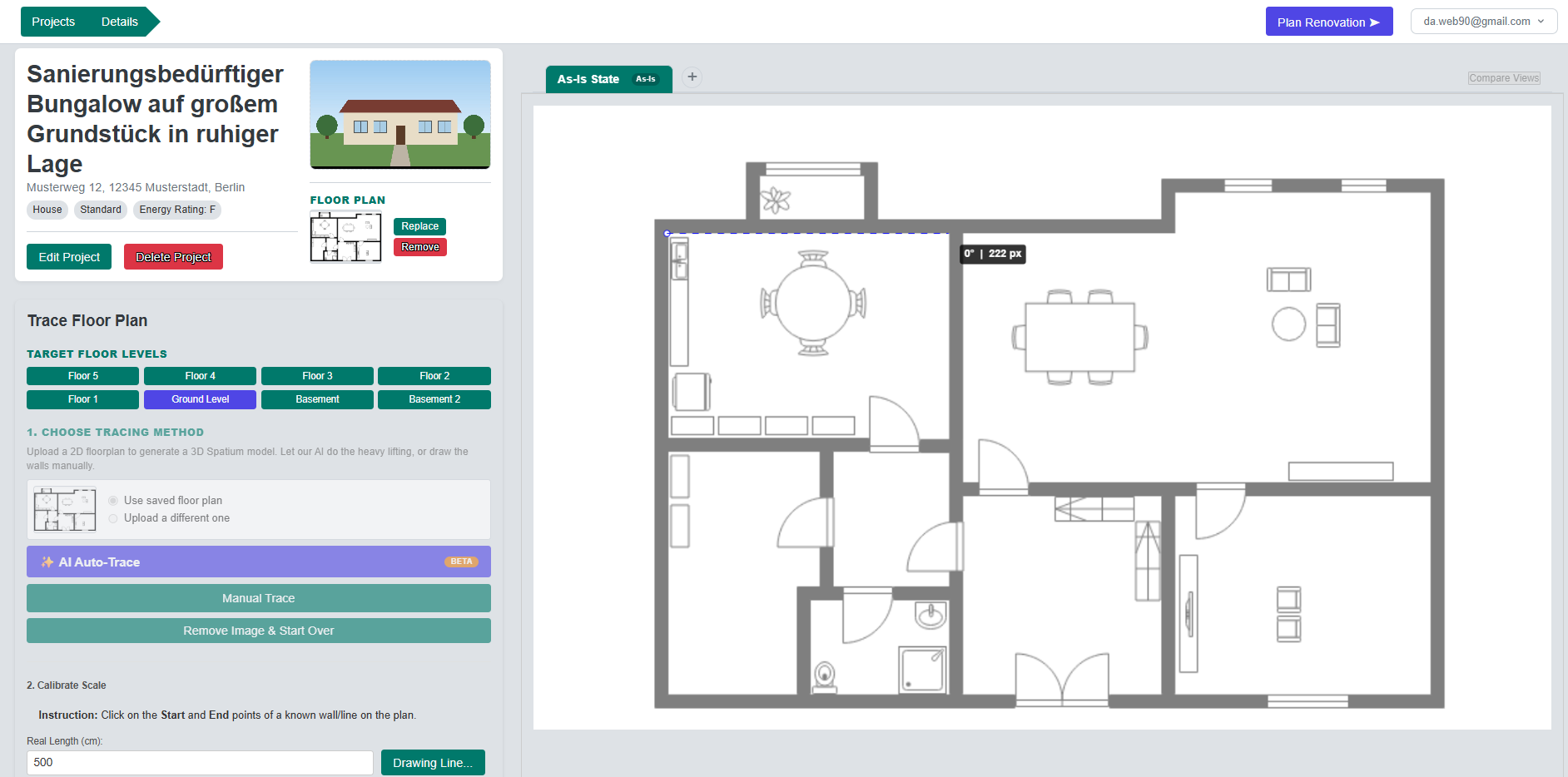
Use a JPG or PNG of your plan. Imported a listing? Choose “Use saved floor plan” and skip the upload.
Click both ends of a wall whose real length you know and enter that length. It is the only measurement Spatium needs.
Select one or several floor levels, from basement to upper floors. The traced layout is created on each of them.
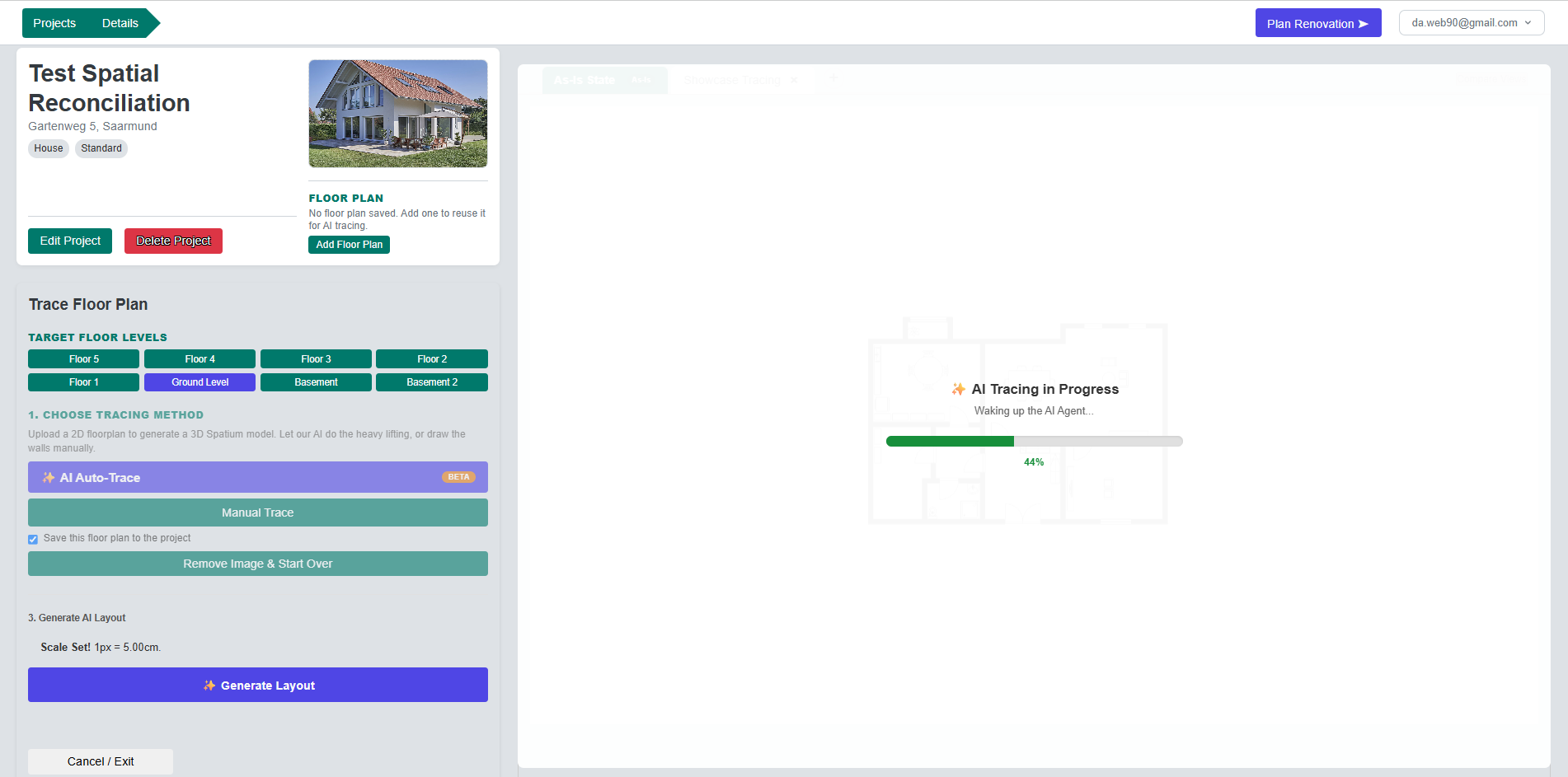
AI Auto-Trace (beta) detects walls, doors and windows and builds the rooms. Prefer full control? Click the corners of each room yourself.
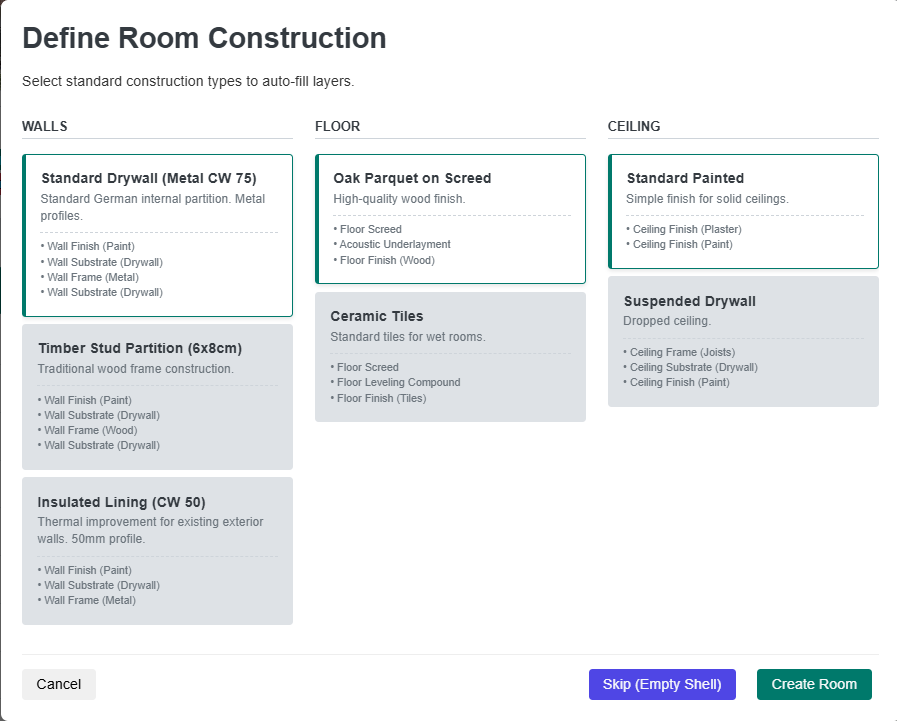
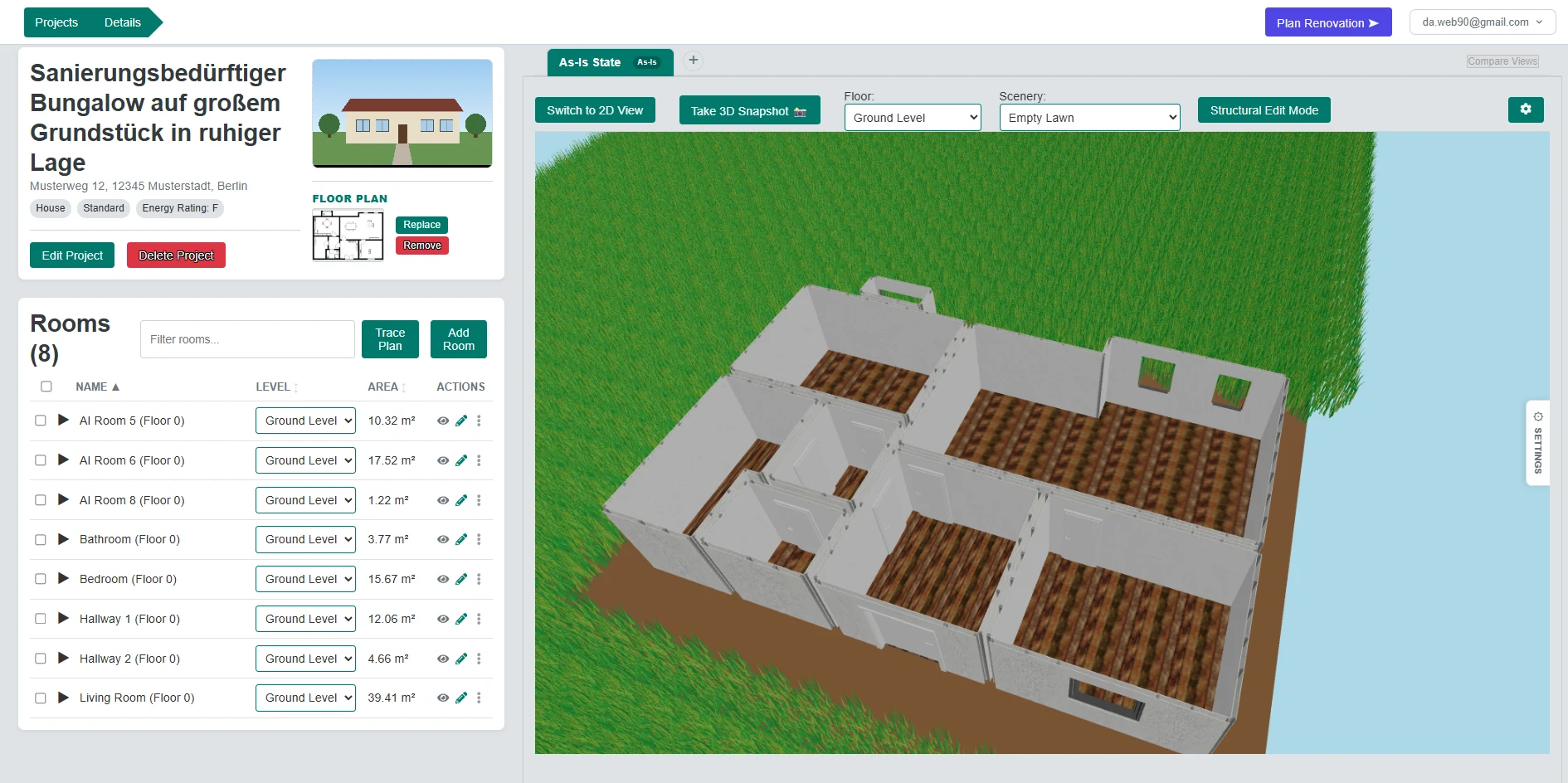
Choose wall, floor and ceiling constructions for all new rooms in one step, then fine-tune the result in the 2D editor and the 3D view.
Use whichever fits the plan in front of you. Both end in the same editable rooms.
The AI reads your plan and builds the rooms for you: walls, doors and windows in one pass.
Click the corners of each room on your plan and Spatium builds the walls from your outline.
Right after tracing, Spatium asks how the new rooms are constructed. Choose a wall, floor and ceiling construction once and it is applied to every room that was just created.
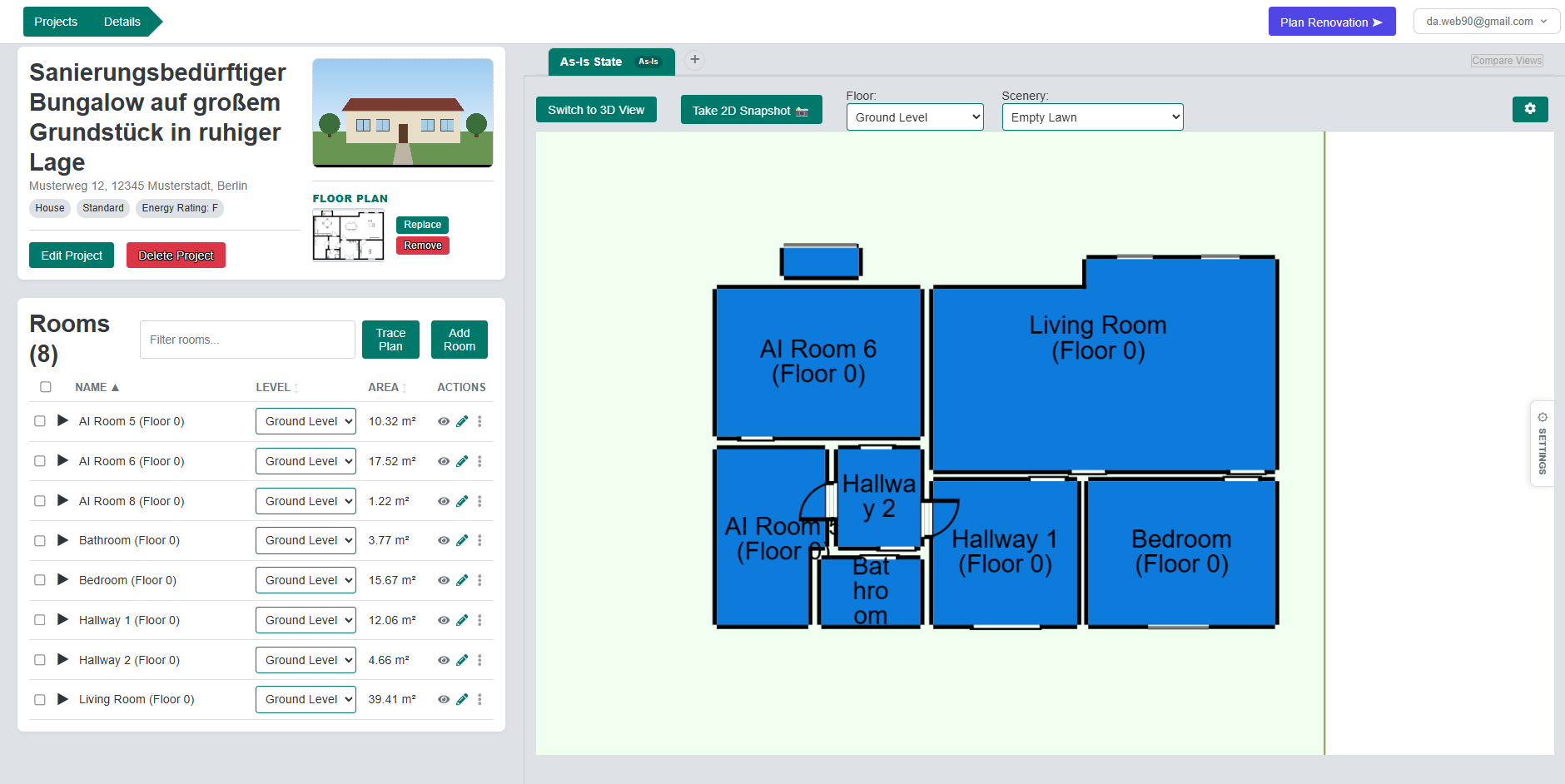
Not just lines on a picture: rooms you can edit, measure and cost.
Every traced room comes with its walls, floor and ceiling, each starting from a standard construction you can change.
With AI Auto-Trace, detected doors and windows are positioned on the walls they belong to.
Rooms are named from their size and openings, for example Bathroom, Bedroom, Hallway or Living Room. Rename them anytime.
Everything is scaled from the length you entered, so room sizes and floor areas are meaningful from the start.
Cost estimates and material shopping lists follow from the constructions you choose, with no extra data entry.
An uploaded plan is saved to the project by default, so you can trace again later. Replace or remove it whenever you like.
What tracing does today, so there are no surprises.
No. You enter one length you know, such as the length of a wall, and everything else is scaled from it.
Correct it in the editor, or remove the rooms and trace by hand. AI Auto-Trace is a head start that you review, not a replacement for a quick check.
Typically about half a minute for a floor once the AI service is warm, depending on the size of the plan. The first trace after a quiet period can take up to about a minute and a half while the service starts. The result is a starting point that you review and correct in the editor.
Yes. The imported plan is saved with the project, so choose “Use saved floor plan” in the tracer. See the listing import feature for how plans are imported.
Working with listings? See how listing import works.